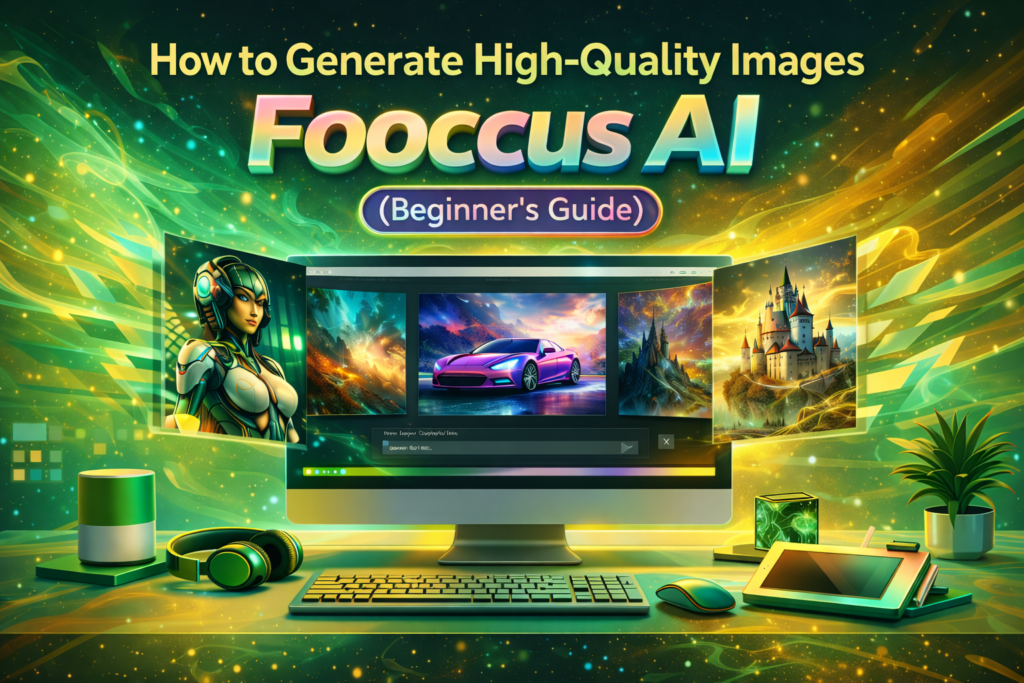
AI image generation has made it possible for anyone to create stunning visuals without professional design skills. Whether you are a blogger, marketer, student, or content creator, tools like Fooocus AI allow you to generate high-quality images from simple text prompts.
If you are new to AI image generation and want an easy, free, and powerful tool, this beginner’s guide will show you exactly how to generate high-quality images using Fooocus AI—step by step.
What Is Fooocus AI?
Fooocus AI is a free, Stable Diffusion–based text-to-image AI generator designed to be simple and beginner-friendly. Unlike advanced AI tools that require technical knowledge, Fooocus AI automates most settings so users can focus on creativity rather than configuration.
Key highlights:
- Free to use
- Beginner-friendly interface
- High-quality image output
- No complex technical settings
- Powered by Stable Diffusion
Why Choose Fooocus AI as a Beginner?
For beginners, Fooocus AI is one of the best choices because:
- ✅ No learning curve
- ✅ No subscription required
- ✅ Simple text prompts
- ✅ Automatic optimization
- ✅ Professional-looking results
You don’t need to know anything about AI models, samplers, or parameters. Fooocus AI handles everything for you.
Step-by-Step Guide: How to Generate Images Using Fooocus AI
Step 1: Open Fooocus AI
Visit the Fooocus AI tool (or launch it locally if you are using a self-hosted version).
You’ll see a clean interface with:
- Prompt input box
- Style options
- Image preview area
Step 2: Write a Clear Text Prompt
The quality of your image depends heavily on your prompt.
Example of a Good Prompt:
A realistic portrait of a young woman, soft natural lighting, detailed facial features, professional photography style
Prompt Writing Tips for Beginners:
- Be specific
- Mention style (realistic, digital art, illustration, etc.)
- Add lighting details
- Describe mood and environment
Step 3: Choose the Right Style (Optional)
Fooocus AI automatically applies styles, but you can still guide it by mentioning styles in your prompt, such as:
- Photorealistic
- Cinematic
- Anime
- Digital painting
- Fantasy art
This helps the AI understand your creative intent.
Step 4: Generate the Image
Click the Generate button and wait a few seconds. Fooocus AI will process your prompt and produce high-quality images.
Step 5: Review and Regenerate (If Needed)
If the first result isn’t perfect:
- Slightly improve your prompt
- Add more descriptive words
- Generate again
AI image generation often improves with small adjustments.
How to Write Better Prompts in Fooocus AI
Use This Simple Prompt Formula
Subject + Details + Style + Lighting + Mood
Example:
A futuristic city skyline at night, neon lights, ultra-detailed, cinematic lighting, cyberpunk style, high resolution
Common Prompt Mistakes to Avoid
- Being too vague
- Writing extremely long prompts
- Mixing too many styles
- Forgetting lighting and mood
How to Generate High-Resolution Images
To get high-quality results:
- Use detailed prompts
- Avoid blurry words like “simple” or “basic”
- Choose realistic or ultra-detailed styles
- Generate multiple variations and pick the best
Fooocus AI automatically optimizes resolution for most use cases.
Using Negative Prompts for Better Results
Negative prompts help tell AI what not to generate.
Example Negative Prompt:
blurry, low quality, distorted face, extra fingers, watermark, text, noisy background
This improves image clarity and realism.
Best Use Cases for Fooocus AI Beginners
1. Blog Featured Images
Generate unique images instead of using stock photos.
2. Social Media Graphics
Create eye-catching visuals for posts and ads.
3. YouTube Thumbnails
Design compelling thumbnail concepts quickly.
4. Logo & Branding Concepts
Create logo ideas and brand visuals.
5. Product Mockups
Generate lifestyle or concept product visuals.
Tips to Get Professional-Looking Results
- Keep prompts clean and descriptive
- Avoid slang or unclear words
- Use one main idea per image
- Regenerate images multiple times
- Save successful prompts for reuse
Common Beginner Problems & Solutions
Problem: Image Looks Blurry
Solution: Add “sharp focus, ultra-detailed, high resolution” to your prompt.
Problem: Faces Look Unnatural
Solution: Use negative prompts like “deformed face, extra fingers.”
Problem: Image Doesn’t Match Prompt
Solution: Simplify your prompt and remove unnecessary details.
Fooocus AI vs Other Tools for Beginners
Compared to tools like Midjourney or raw Stable Diffusion:
- Fooocus AI is easier
- No Discord commands
- No technical confusion
- Free to use
That makes it ideal for beginners.
Can You Use Fooocus AI Images Commercially?
In most cases, yes—especially if you generate images yourself. However:
- Always check usage policies
- Avoid copyrighted prompts
- Follow ethical guidelines
SEO Benefits of Using Fooocus AI Images
- Unique visuals (no duplicate stock photos)
- Better user engagement
- Improved visual branding
- Faster content creation
Final Tips for Beginners
If you are just starting out:
- Practice writing prompts
- Experiment with styles
- Don’t expect perfection on the first try
- Learn by regenerating images
AI improves when you improve your prompts.
Conclusion
Fooocus AI is one of the best AI image generators for beginners in 2026. It combines simplicity, power, and high-quality results without the need for subscriptions or technical knowledge.
If you want to generate high-quality images easily and for free, Fooocus AI is the perfect place to start.
FAQs
Is Fooocus AI good for beginners?
Yes, it’s one of the most beginner-friendly AI image generators available.
Do I need design experience?
No, just basic prompt writing.
Is Fooocus AI free?
Yes, it’s free to use.